Lexori is a vocabulary trainer. Every word comes with audio, an example and a translation into your language, most with a picture too, and each one returns right before you are likely to forget it. A few minutes a day is enough.
No sign-up form: your teacher (or the Lexori team) creates your account.
Audio for every word
Pictures that stick
Your own language
lexori.app/learn/review
What is Lexori
Flashcards that plan themselves
You don’t decide what to repeat and when. You answer a few cards a day, and Lexori takes care of the rest.
A full card for every word
A translation into your language, an everyday example, a definition, clear spoken audio and, for most words, a picture. Not a bare list of pairs.
Right before you forget
Spaced repetition plans every review for you. Words you know well show up rarely, shaky ones come back until they hold.
A few minutes a day
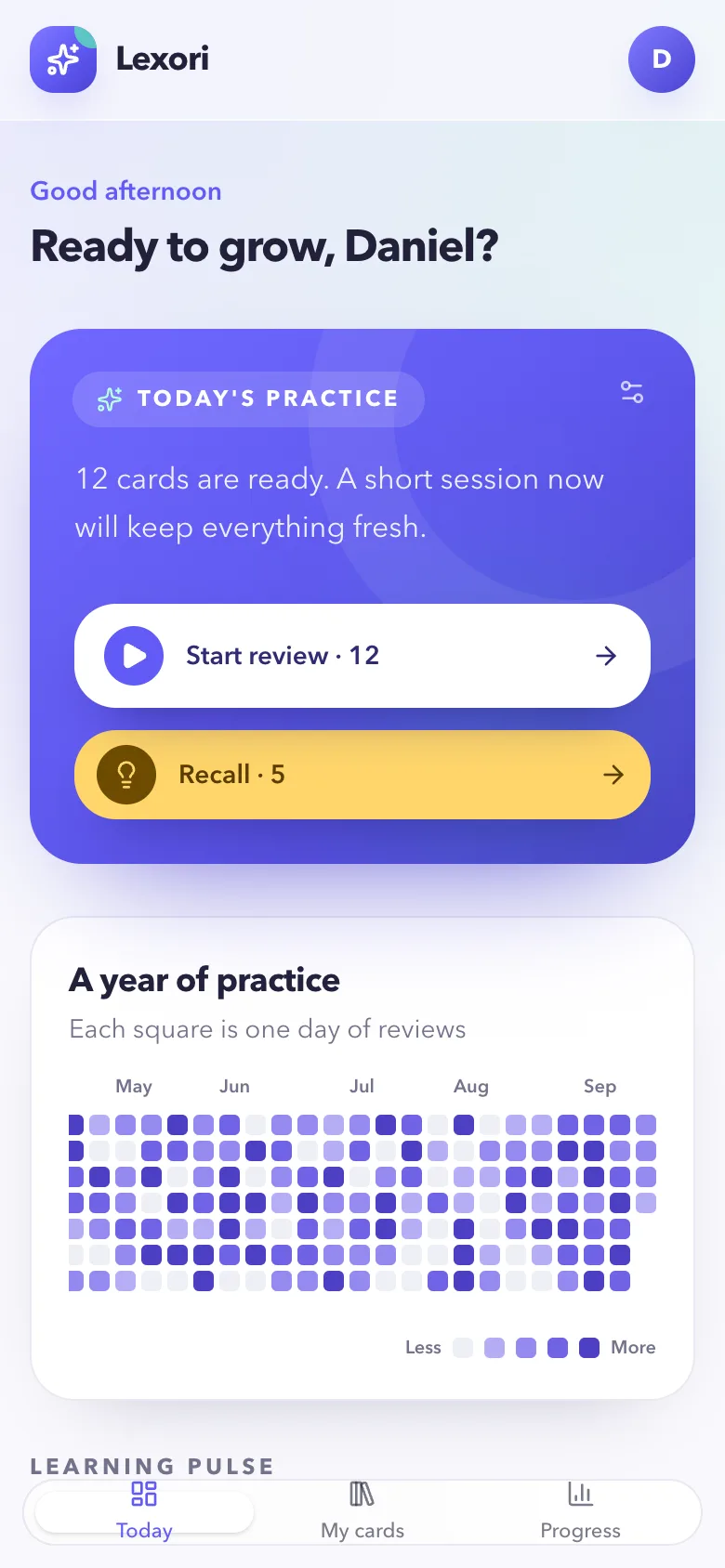
Open Today, go through the cards that are ready, and you’re done. A streak and a year of practice keep you going.
Try it right here
This is how a review feels
Real words from the Lexori dictionary, with their pictures and audio. Answer in your head, reveal, and pick a button.
1Look at the word. Tap the speaker to hear it.
2Say what it means, out loud or to yourself.
3Reveal the answer and compare.
4Rate how it went: Again, Hard, Good or Easy.
Card 1 of 6
Translate into
EnglishSay the meaning, then reveal
a cat
How it works
Your daily session in four steps
Same routine every day, on a laptop or a phone.
1
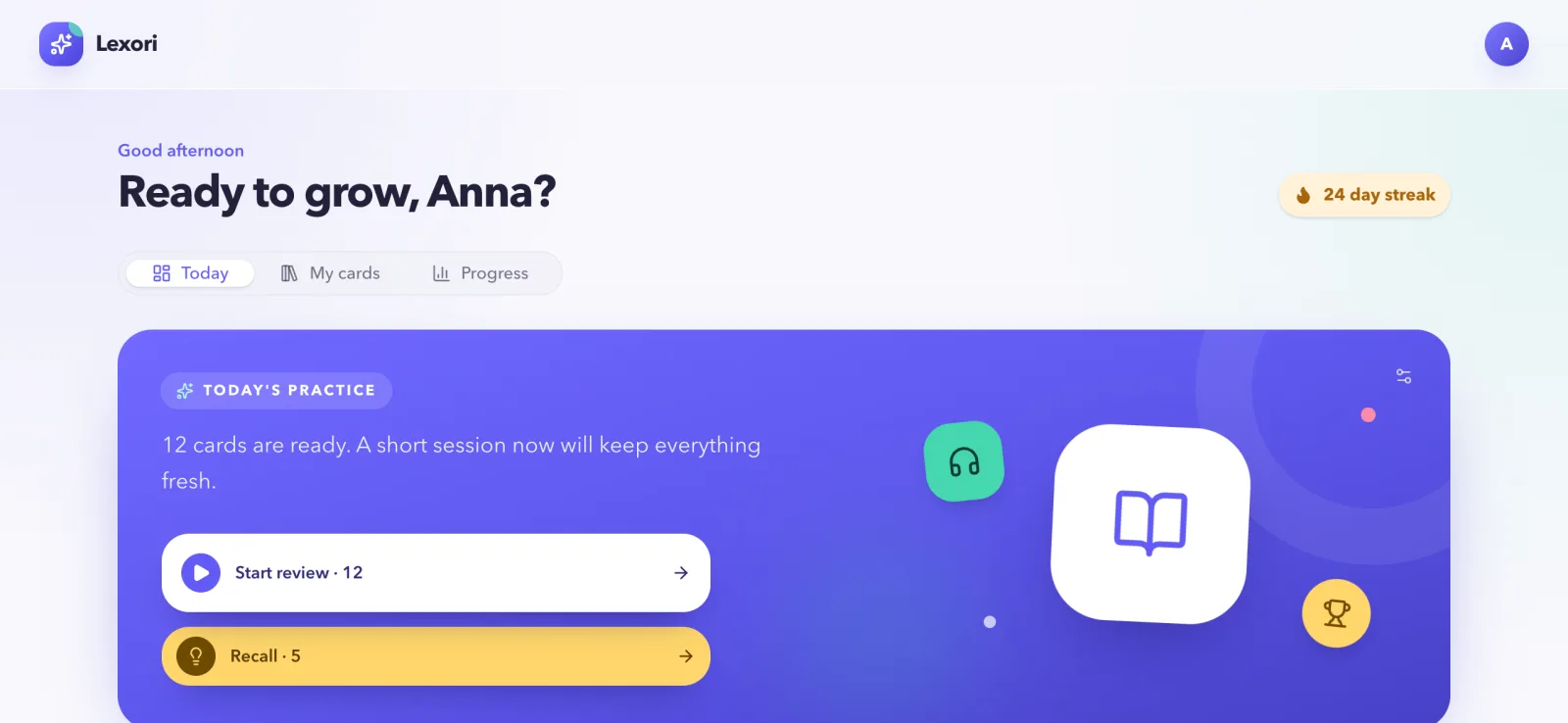
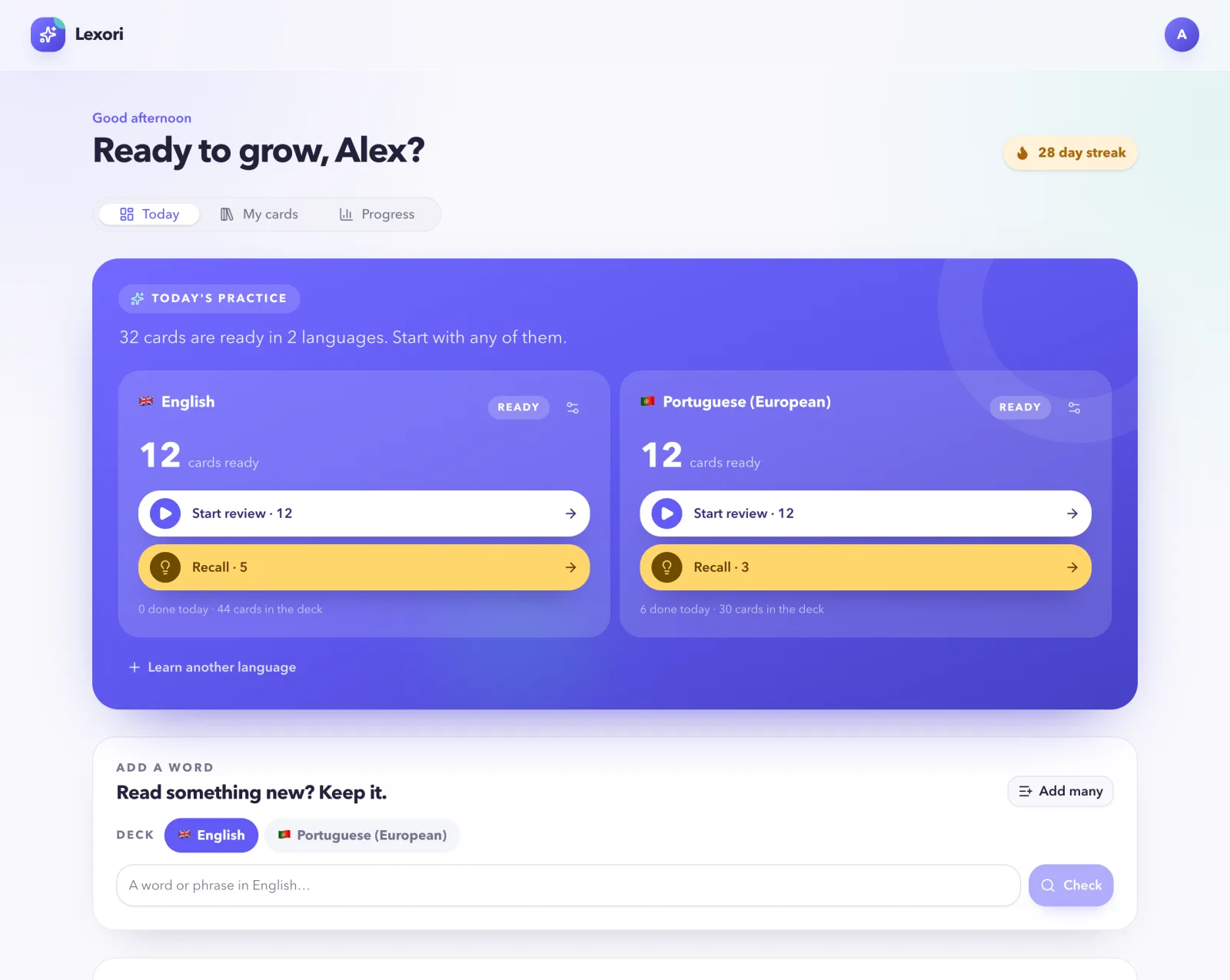
Open Today and press Start review
The number on the button is how many cards are ready right now. Nothing more to plan: when they are done, you are done. Once some words are solid, a yellow Recall button appears under it (more on that below).
lexori.app/learn/dashboard
2
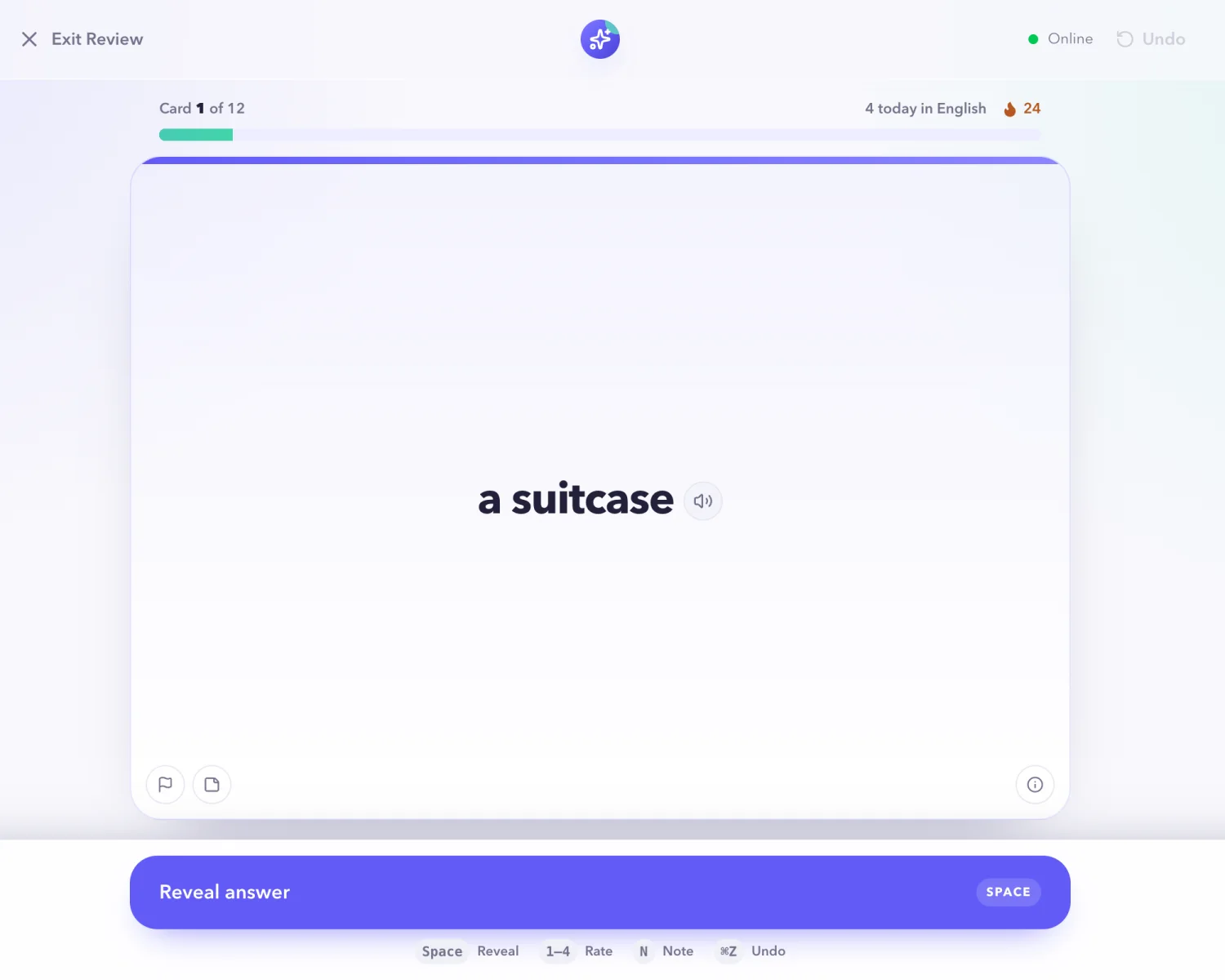
Look at the word and answer in your head
The word plays by itself; press the speaker to hear it again. Try to recall the meaning before you look: say it out loud or think it through. The bar on top shows how far you are in the session.
lexori.app/learn/review
3
Reveal and check yourself
Press Reveal answer (or Space). The example plays by itself. Compare with what you said: the translation, the picture, the example and the definition.
lexori.app/learn/review
4
Tell Lexori how it went
Again, Hard, Good or Easy. This is the only decision you make, and it sets when the word comes back. Here is how to choose.
The back of a card
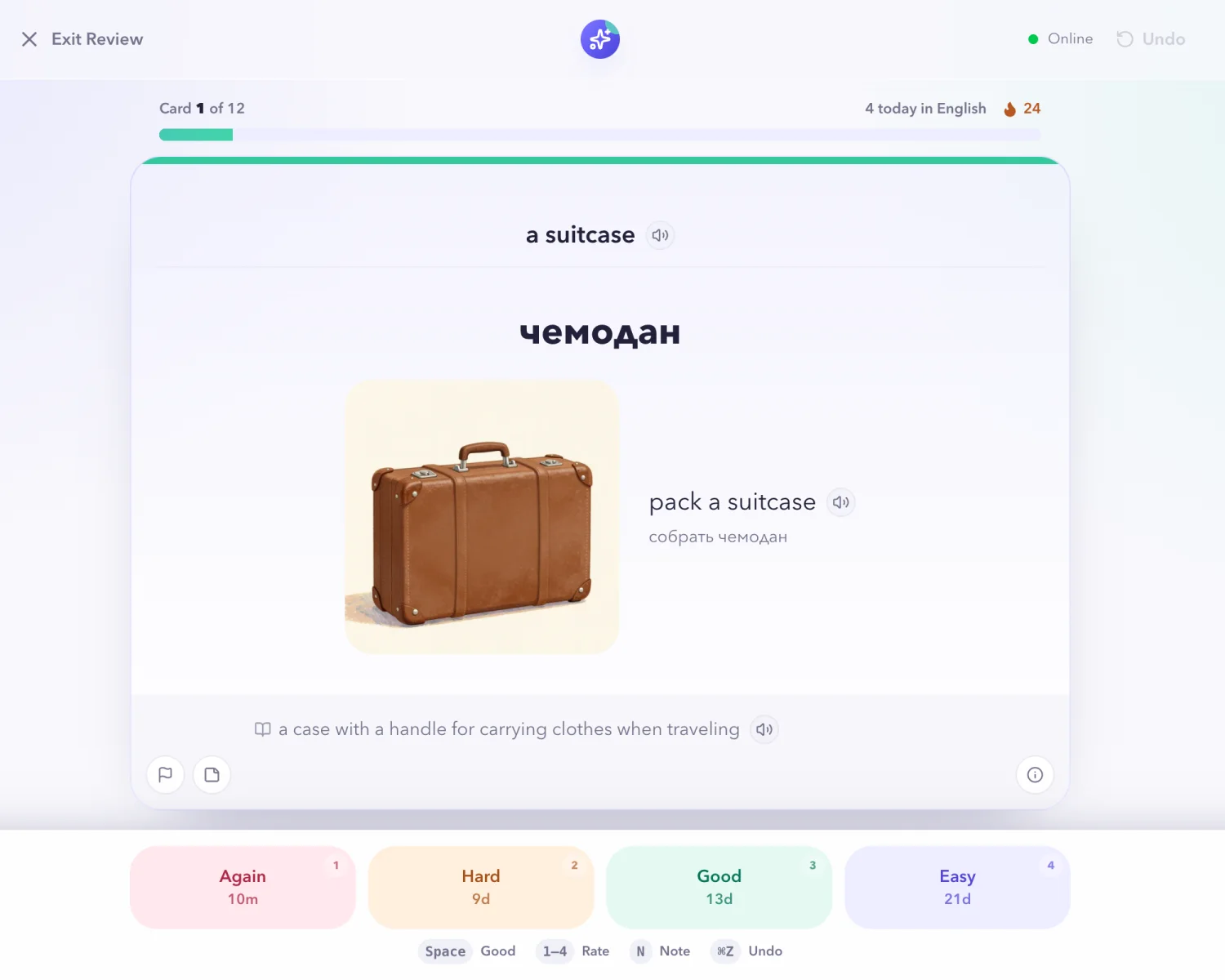
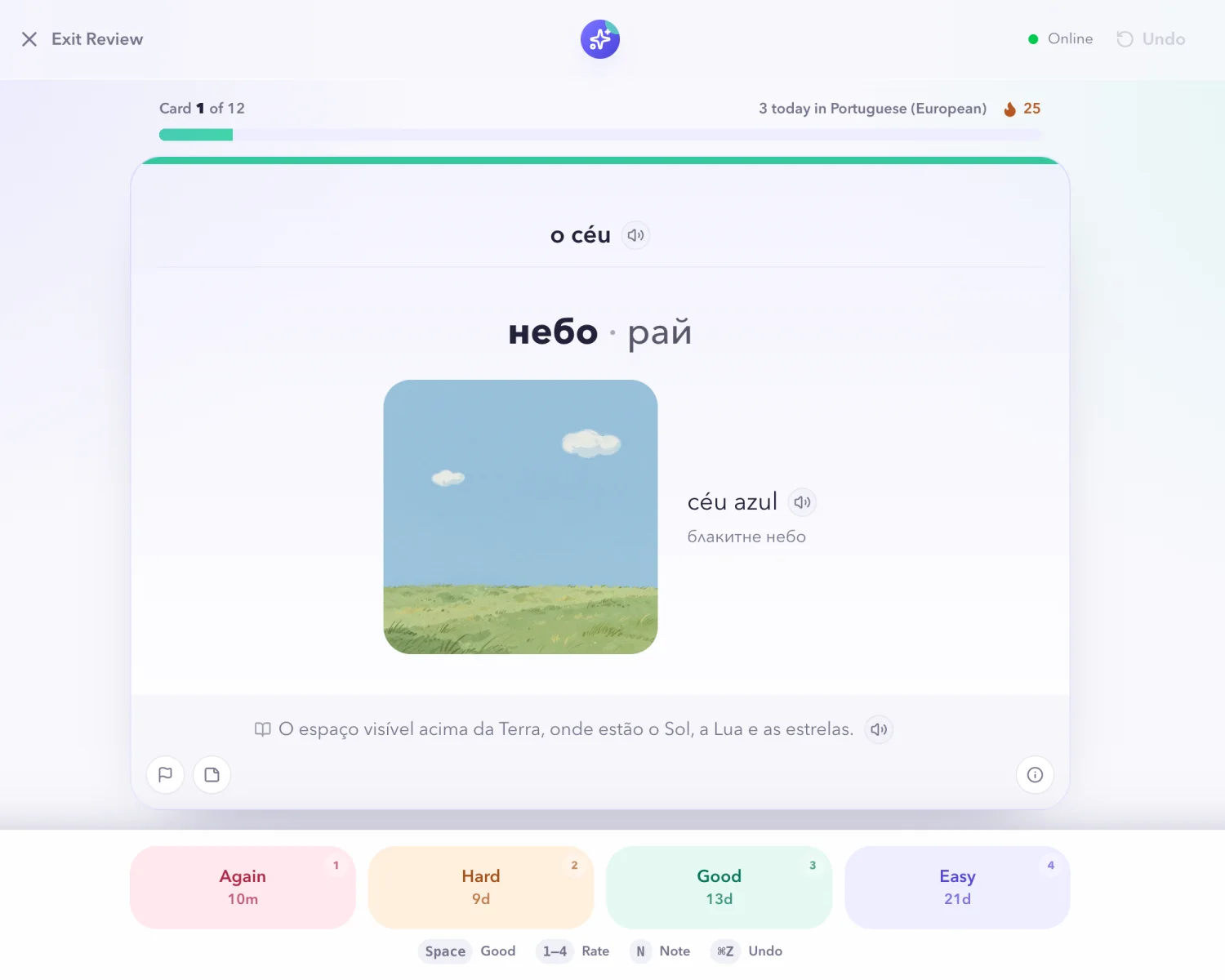
Everything you need to really get a word
When you reveal an answer, you don’t just see a translation. Each card is built so the word has something to hold on to.
lexori.app/learn/review
123456789
1
The word
Exactly as you will meet it, with an article or "to" where it belongs. The speaker plays it.
2
Translation
Into the language you chose, with several meanings when the word has them. You can also switch translations off and learn from the picture and the definition alone.
3
Picture
An illustration of the meaning. Pictures stick in memory faster than lists.
4
Example
A short everyday phrase with the word, its own audio and its translation.
5
Definition
A plain explanation in the language you are learning, to start thinking in it.
6
Report and note
The flag reports a mistake in the word. The page icon keeps your own note on the card.
7
Card info
Where the word stands for you: its stage, how many times you have reviewed it and how firmly it is held.
8
Your answer
Four buttons, each with the time until the next review under it. Read below which one to press.
9
Undo
Takes back the last answer if you pressed the wrong button.
Which button do I press?
One honest tap decides when you see the word again
After you reveal a card, tell Lexori how it went. Nobody grades you: the answer only sets the schedule, so the honest answer is always the right one.
Again10m1
Press it when
You didn't remember it, or you remembered it wrong.
What happens
The word goes back to short steps: it returns in about 10 minutes, then again over the next days. Its progress drops, but is not wiped.
You saw "a suitcase" and thought it meant a bag. Close, but no: Again.
Hard9d2
Press it when
You got it, but only after a real struggle, or you were not sure.
What happens
The word counts as remembered, but comes back sooner than with Good and its gaps grow more slowly.
It took ten seconds and half a guess to get "a laranja". Hard.
Good13d3
Press it when
You remembered it after a moment of thought. This is the normal answer.
What happens
The gap grows at the normal pace: days, then weeks, then months.
"o café"… кава! One second of thinking. Good.
Easy21d4
Press it when
You knew it instantly, with no effort at all.
What happens
A big jump forward: the gap grows much faster than with Good.
"a cat"? You knew it before the card finished loading. Easy.
The intervals above are an example for a word you learned a few days ago. For a brand-new word they start in minutes; for a word you have known for months they reach weeks and months.
Rules of thumb
Answer before you reveal
Say the meaning out loud or in your head first. If it only feels familiar once you see the answer, that is Again.
Between Good and Hard? Press Good
A short pause to think is normal. Hard is for a real struggle, not for every second of hesitation.
Wrong is Again, even if you were close
Again is not a punishment. It just means the word needs another round today, and that is how it sticks.
The small number is when it comes back
Under each button you see how long until the card returns: 10m, 13d, 60d. You never have to plan anything yourself.
Pressed the wrong one?
Undo in the top corner (or Ctrl/⌘+Z) takes the last answer back. Press it again to go further back.
The other controls on the review screen
Speaker
Speaker. The word plays by itself, the example after you reveal. Press the speaker to hear it again and repeat out loud.
Report this word
Report this word. Something is off: a wrong translation, a strange picture, bad audio. It goes straight to the team.
Note
Note. Your own hint for this word, like a mnemonic or a sentence of yours. It appears on the back of the card each time you reveal it. Your teacher can see it too.
Card info
Card info. The stage of the word, how many times you reviewed it and how firmly you hold it.
Online
Online. Green: your answers are saved as you go. Yellow: reconnecting, answers wait. Red: offline; press Retry or check your internet.
Exit Review
Exit Review. Stop whenever you like. Answered cards are already saved; the rest wait for next time.
On a keyboard it is even faster
Space/EnterReveal the answer
1234Again · Hard · Good · Easy
SpaceAfter revealing: Good
NAdd or edit a note
Ctrl/⌘ZUndo the last answer
Recall cards
Then the other way round
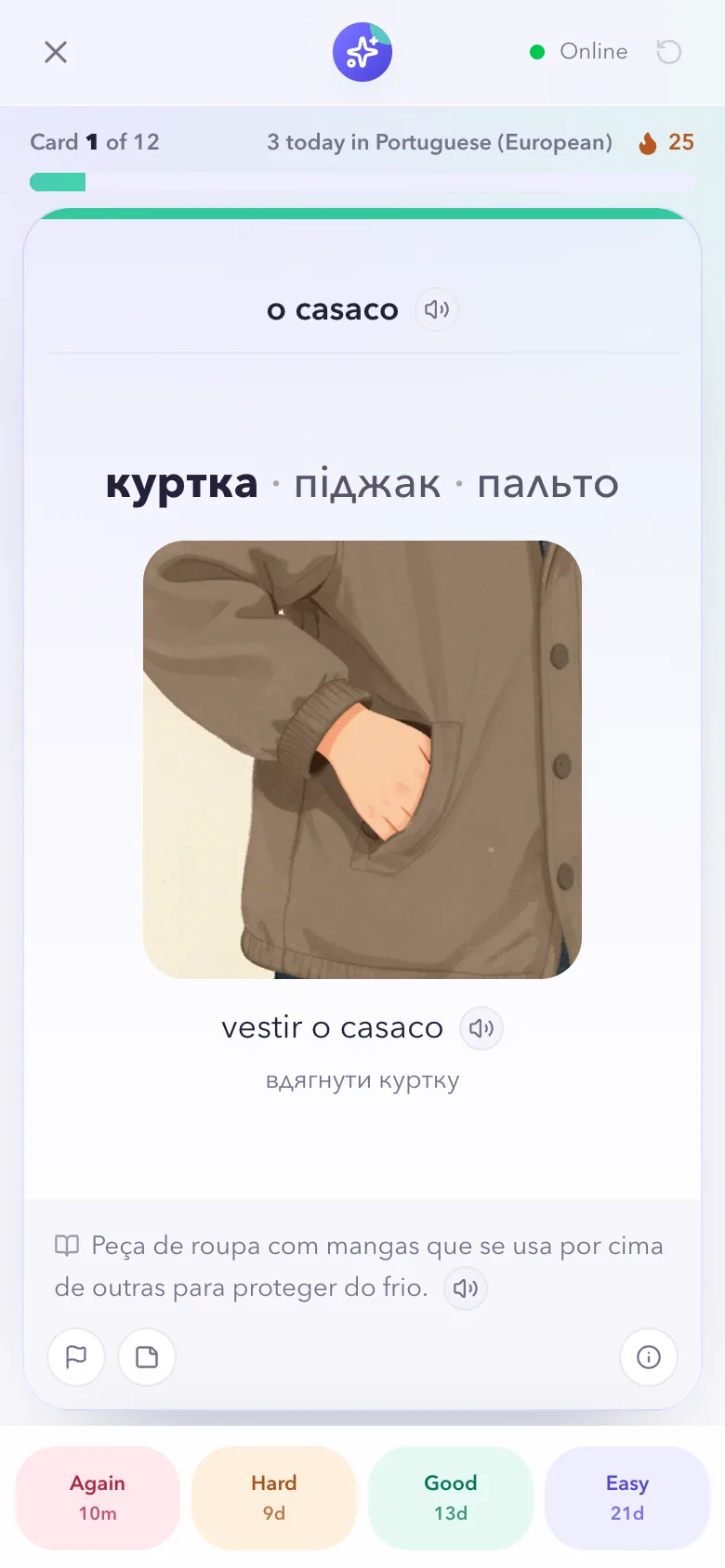
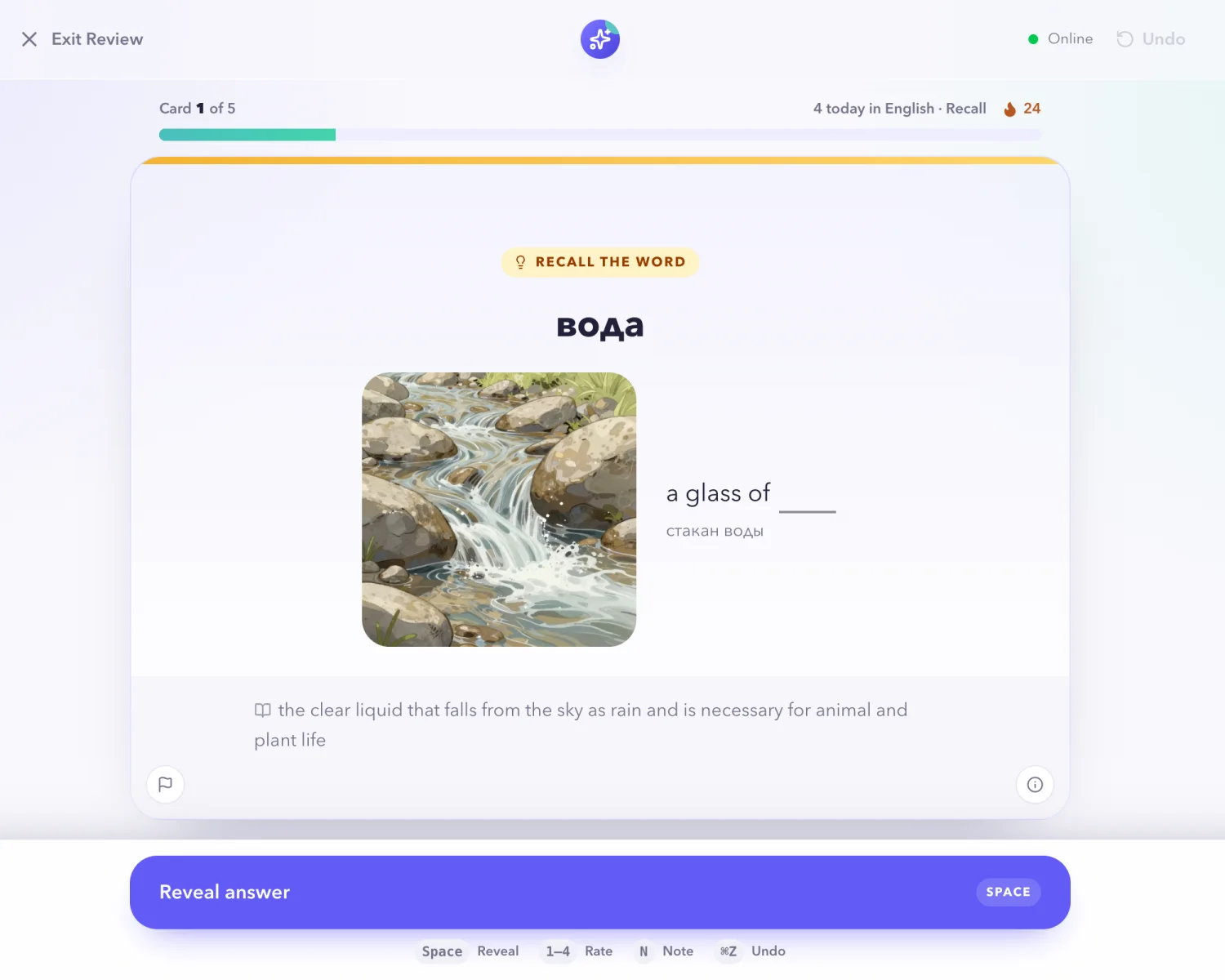
Recognising a word is half of knowing it. Once a word holds for about ten days, Lexori also asks it the other way round: you see the meaning and produce the word yourself.
Recall cards have their own yellow Recall button on Today and are marked Recall the word.
You get the translation, the picture, the example and the definition with the word blanked out. Say the word, reveal, and rate it with the same four buttons.
If you forget a word in the normal direction, its recall card waits until the word is solid again. Don’t want them? Switch Recall off in the language settings.
lexori.app/learn/review?direction=production
lexori.app/learn/dashboard
Progress
See your memory grow
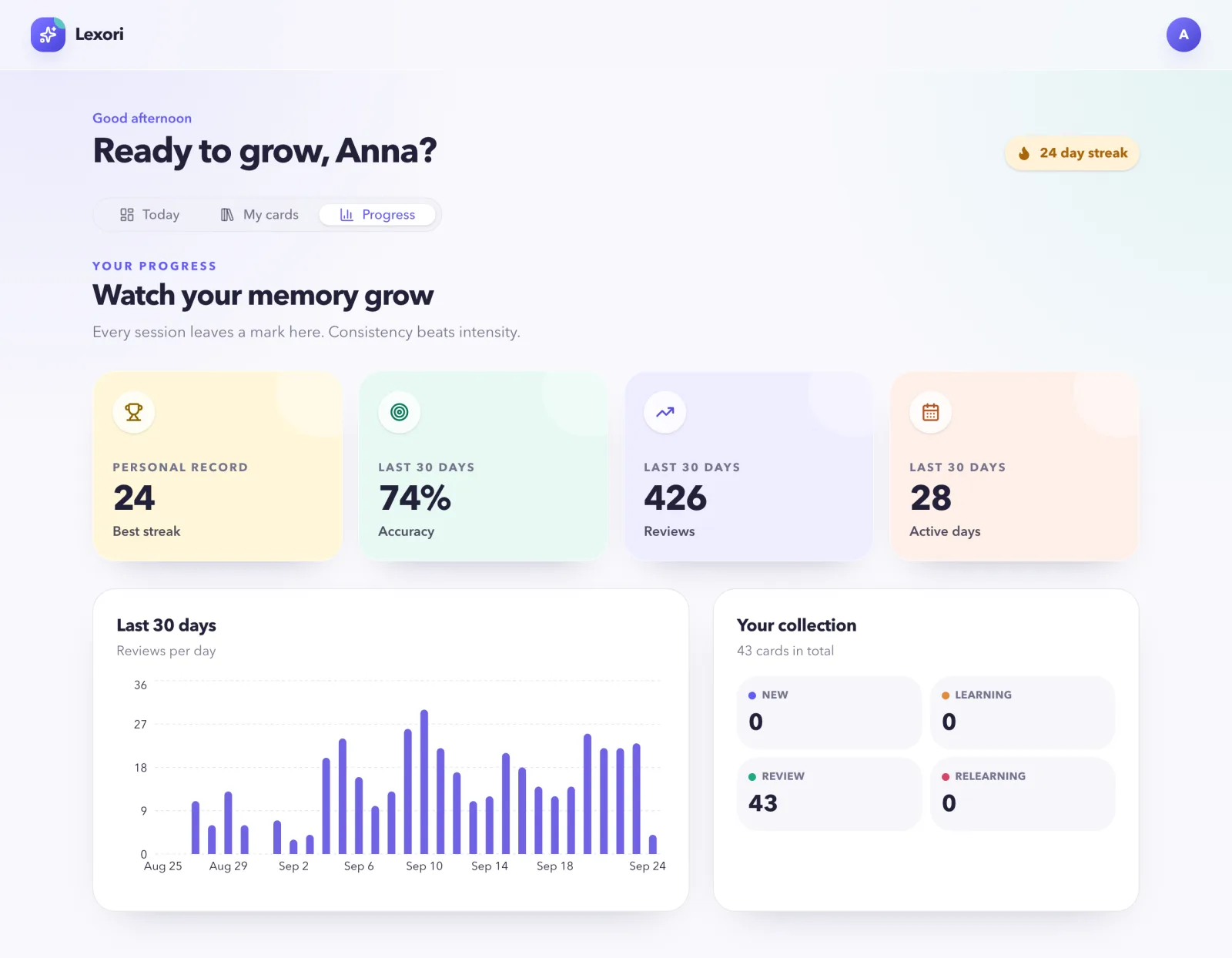
The Progress tab shows how regular you are and how well the words hold.
Best streak: your longest run of days with at least one review, in any language.
Accuracy: the share of Good or Easy answers over the last 30 days. Hard still counts as remembered for the schedule, it just doesn’t count here.
Collection: every word of your deck by stage.
New
not seen yet
Learning
first steps, minutes apart
Review
known, back at growing gaps
Relearning
forgotten, being brought back
My cards, the second tab, lists every word you study with a search box and a filter by stage.
Several languages, any device
One account for everything you learn
Learning English and Portuguese at once? Each language gets its own deck, its own settings and its own card on Today. The streak counts them all.
lexori.app/learn/dashboard
Learning on your own? The Add a word box puts any word you meet into your deck. Choose the deck, type the word, press Check. Add many takes a whole list.
Put it on your home screen
iPhone: Safari → Share → Add to Home Screen. Android: Chrome → ⋮ → Add to Home screen.
For teachers
You teach. Lexori makes sure the words are still there on Thursday.
Create accounts for your students, give them the words from each lesson in a minute, and see who actually practises between classes.
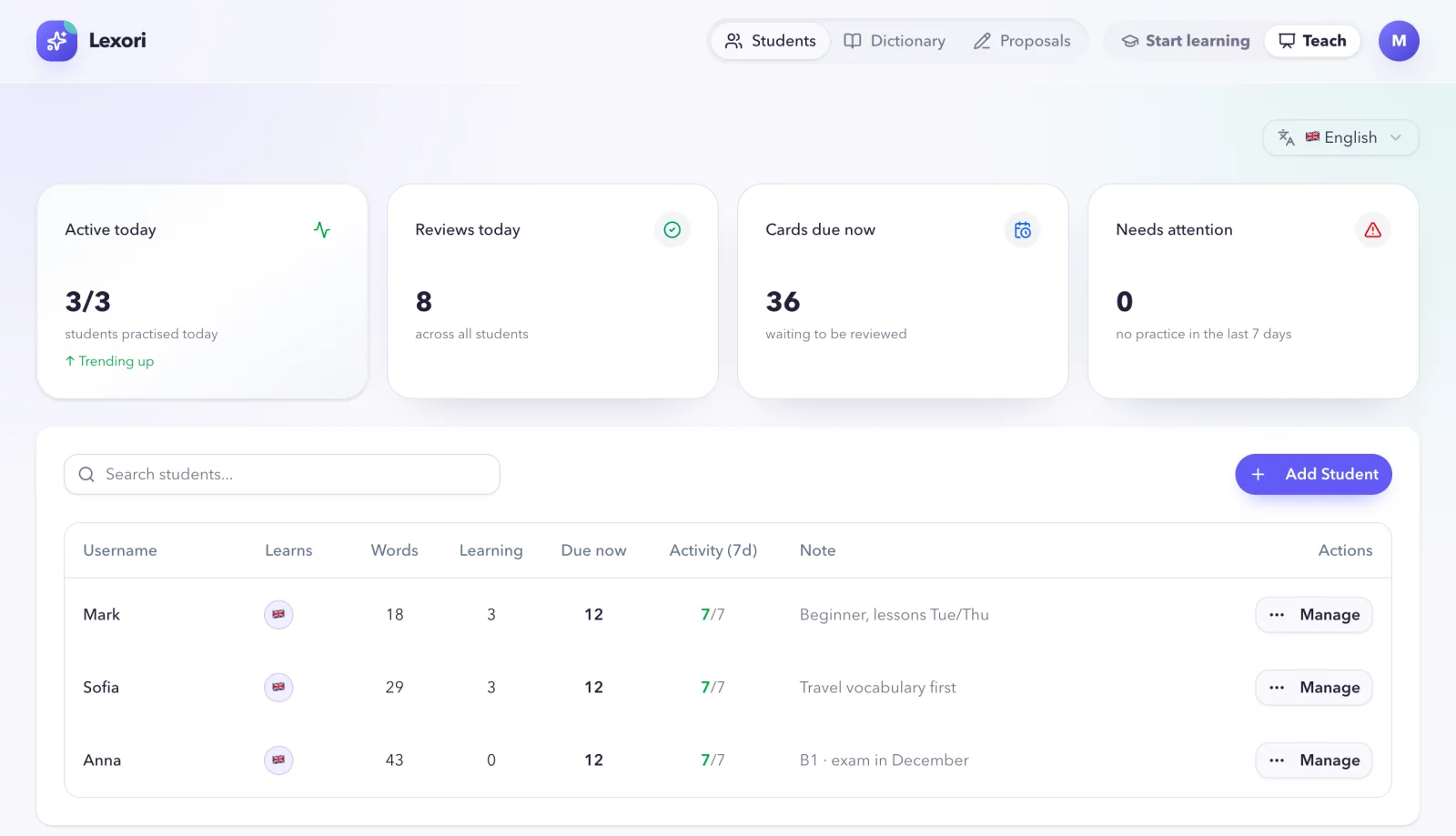
lexori.app/teacher/students
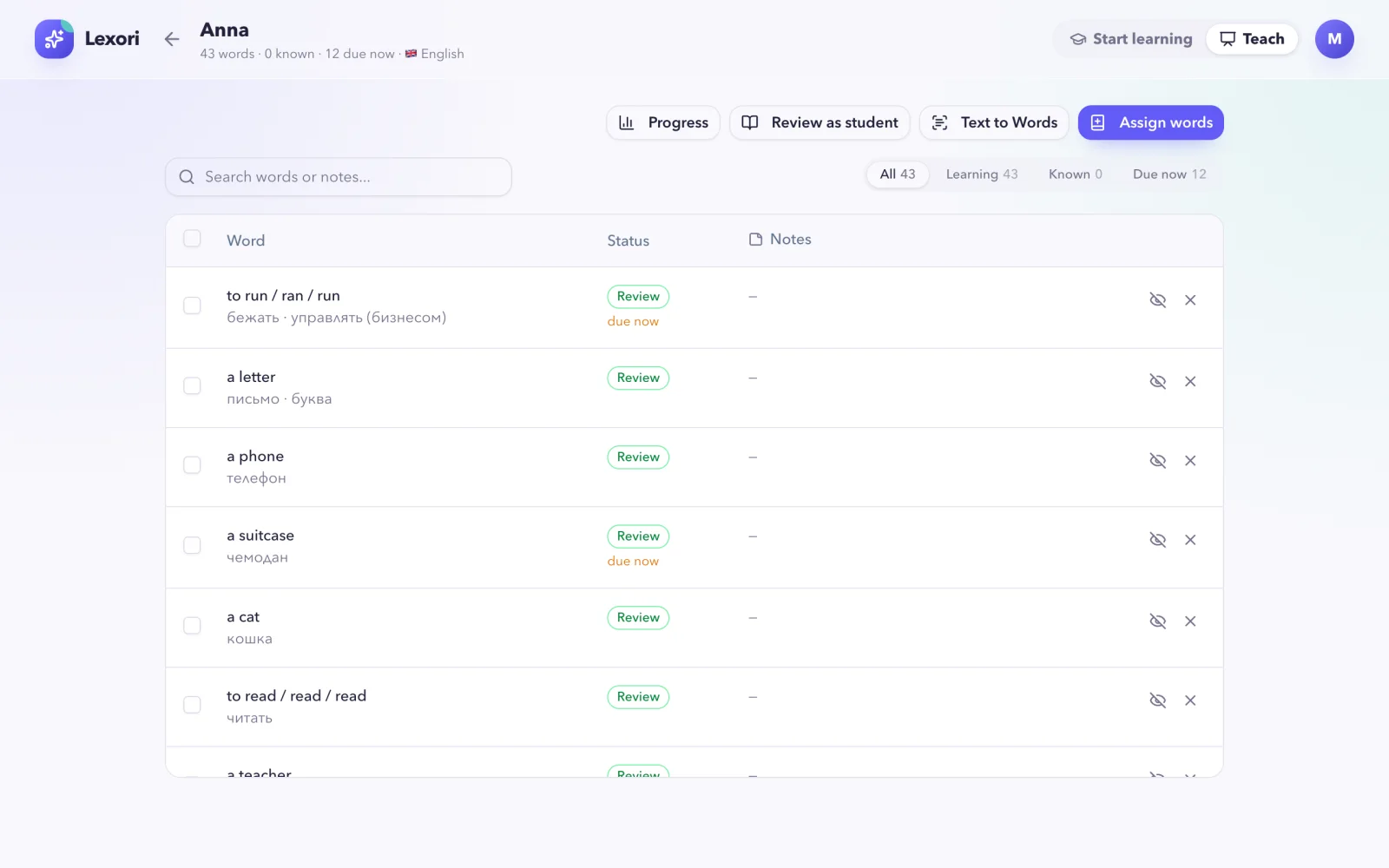
lexori.app/teacher/students/anna
One student: every word with its status, what is due now, and the tools for the lesson.
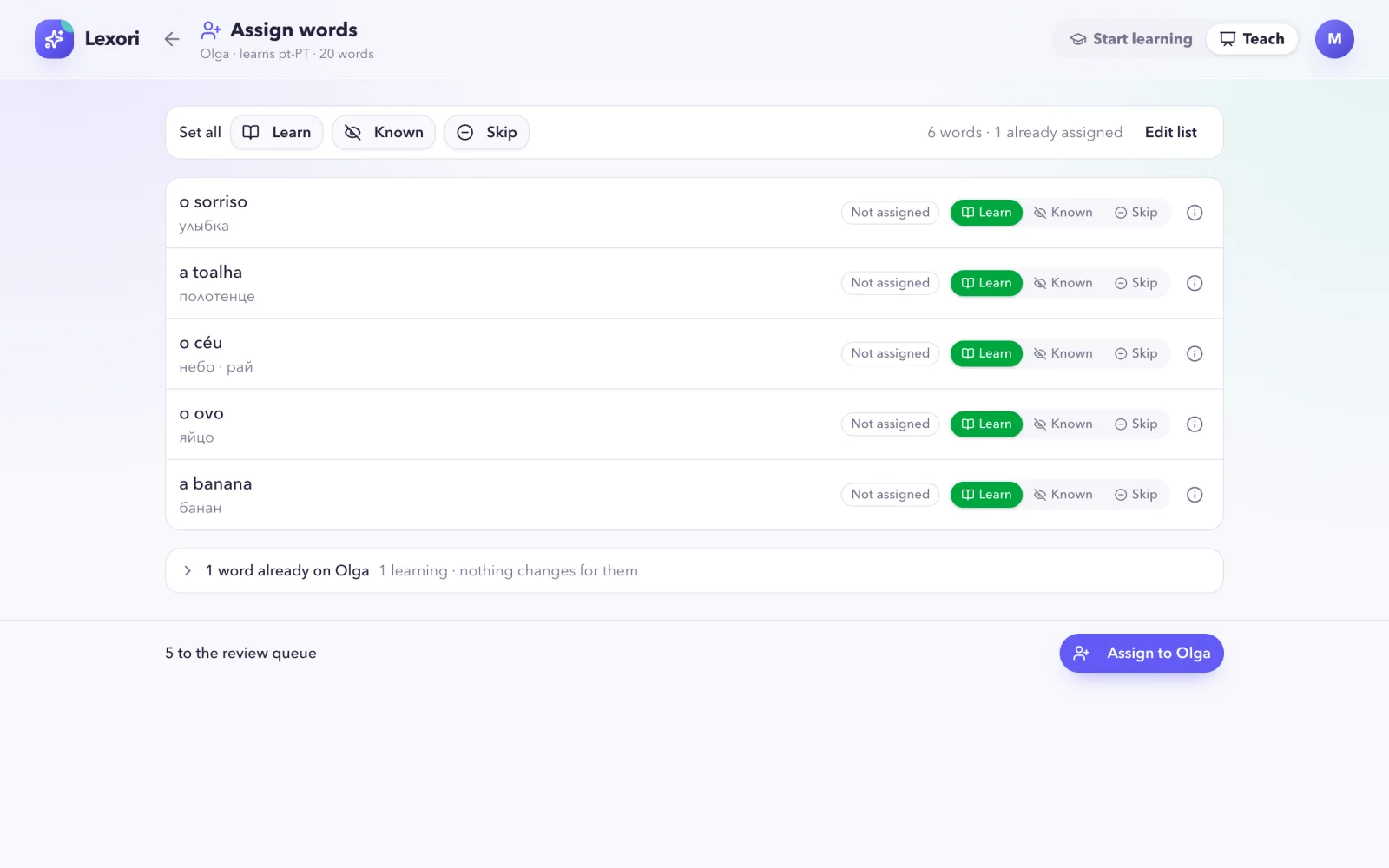
lexori.app/teacher/students/olga/assign
Pasted words, checked against the student. Learn sends a word to the review queue, Known adds it to the deck without quizzing the student on it, Skip leaves it out.
See the whole class at a glance
Who practised today, how many reviews were done, how many cards are waiting, and who has not practised for a week. Each student has a private note only you can see.
Give words by pasting a list
Paste the words from today’s lesson. Lexori matches them with the dictionary and the student’s deck, and you choose for each: Learn, Known or Skip.
A dictionary that fills itself
A word nobody has added yet is created for you: translations, an example, a definition and audio. Pictures are added to the dictionary over time.
Review together in class
Review as student opens the student’s due cards, so you can go through them side by side in class. The answers count as the student’s own reviews. Progress shows their streak and accuracy.
Fix what is wrong
Spotted a weak translation or example? Suggest a correction from the dictionary; unless you are a trusted editor, it is checked before it reaches every learner.
Teachers can learn too. The Learn | Teach switch in the header opens your own deck, with the same cards and the same daily routine as your students.
Questions
Good to know
How do I get an account?
There is no public sign-up. If you study with a teacher, they create your account and give you a username and password. If you want to learn on your own, or to teach with Lexori, the Lexori team creates the account for you.
How much time does it take?
Usually 5 to 15 minutes a day. The Today screen shows how many cards are ready; when you have gone through them, you are done for the day.
What happens if I skip a few days?
Nothing is lost. The cards simply wait, and the pile is a little bigger when you come back. Do it in a couple of sessions if it is too much at once. Only your streak starts over.
Why do I see some words every day and others once a month?
That is the point of spaced repetition. Every answer updates how firmly you know the word, and Lexori brings it back right before you are likely to forget it. Shaky words come back often, solid ones rarely.
What do New, Learning, Review and Relearning mean?
New: you have not seen the word yet. Learning: its first short steps, minutes apart. Review: you know it, and it comes back at growing intervals. Relearning: you forgot it and it is going through the short steps again.
What are Recall cards?
Once a word holds for about ten days, Lexori also asks it the other way round: you see the translation, the picture, the example and the definition with the word blanked out, and produce the word yourself. They have their own Recall button on Today, and you can switch them off with the Recall option in the language settings.
Which languages can I learn?
Right now English and European Portuguese, with translations into Russian or Ukrainian (and into English for Portuguese). More languages are on the way. One account can learn several languages; each has its own deck and settings.
Can I add my own words?
If your teacher allows it, or if you learn on your own, yes: the Add a word box on Today adds a word to your deck, and Add many takes a whole list. Anything missing from the dictionary is created for you.
Does it work on my phone?
Yes. Open lexori.app in the browser and add it to the home screen: on iPhone, Safari → Share → Add to Home Screen; on Android, Chrome → ⋮ → Add to Home screen. It then opens full screen like an app.
I found a mistake in a card. What do I do?
Press the flag on the card and describe what is wrong. Reports go to the team that looks after the dictionary, and the fix reaches everyone who studies the word.
A few cards today. Words that stay for years.
Already have an account? Sign in and press Start review. Your words are waiting.